Admin View
The Admin View provides a centralized interface for reviewing conversations and analyzing user interactions with Serenity.
Overview
Every conversation with Serenity is recorded and accessible via the Admin View. This includes both the end-user messages and the responses generated by Serenity. The Admin View allows for:
- Reviewing complete chat history
- Inspecting low-level technical details for each interaction
- Reviewing user feedback
- Applying filters to focus on specific conversation subsets
- Running targeted analytics to surface common issues and improvement areas
Accessing the Admin View
The Admin View is accessible to users with admin privileges via:
Conversation Review
All conversations with Serenity are stored and can be reviewed in full.
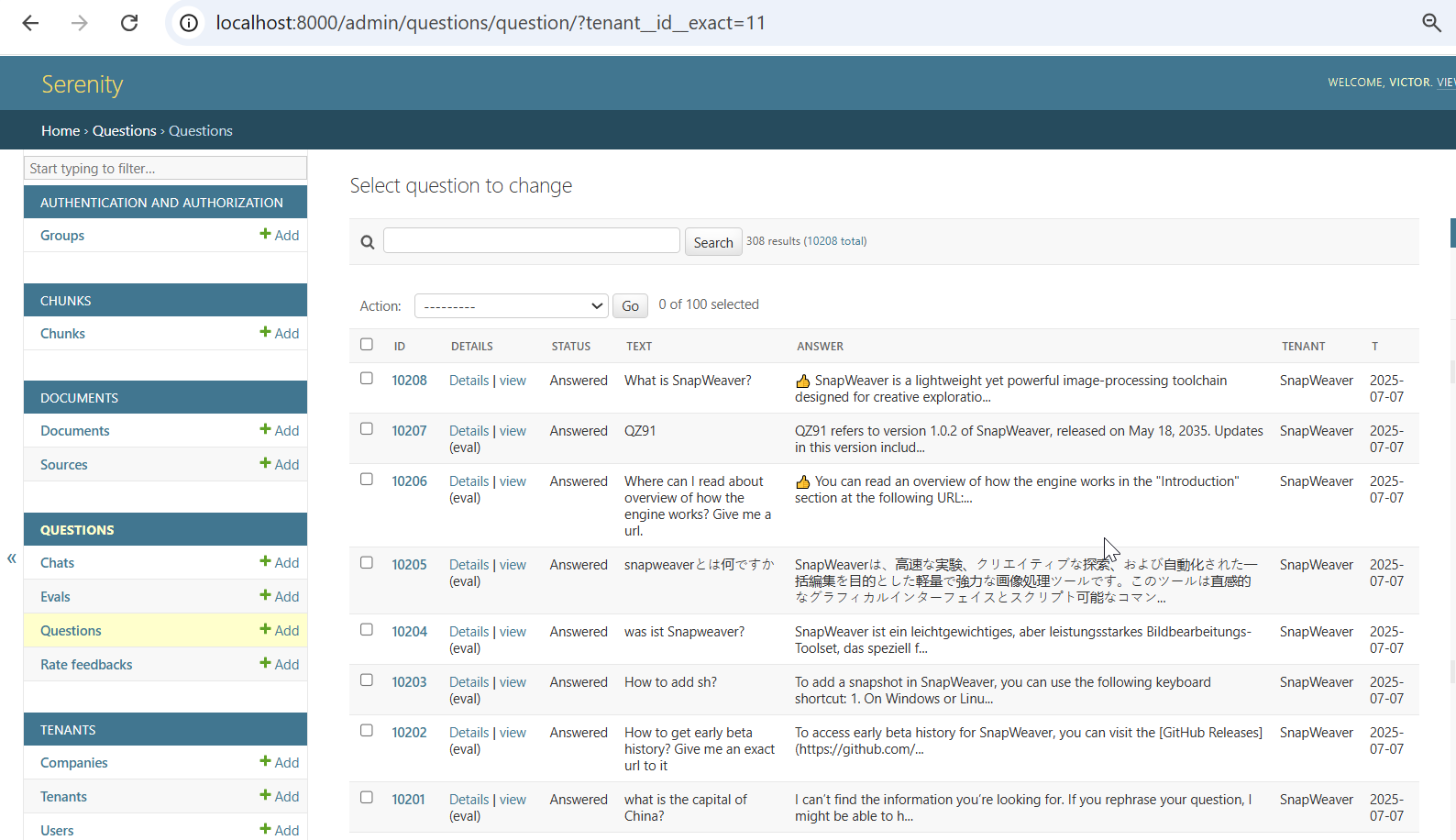
Each question row offers two ways to inspect it:
- Details: See the context and AI decisions behind the response.
- View: See the conversation as it appeared to the user.
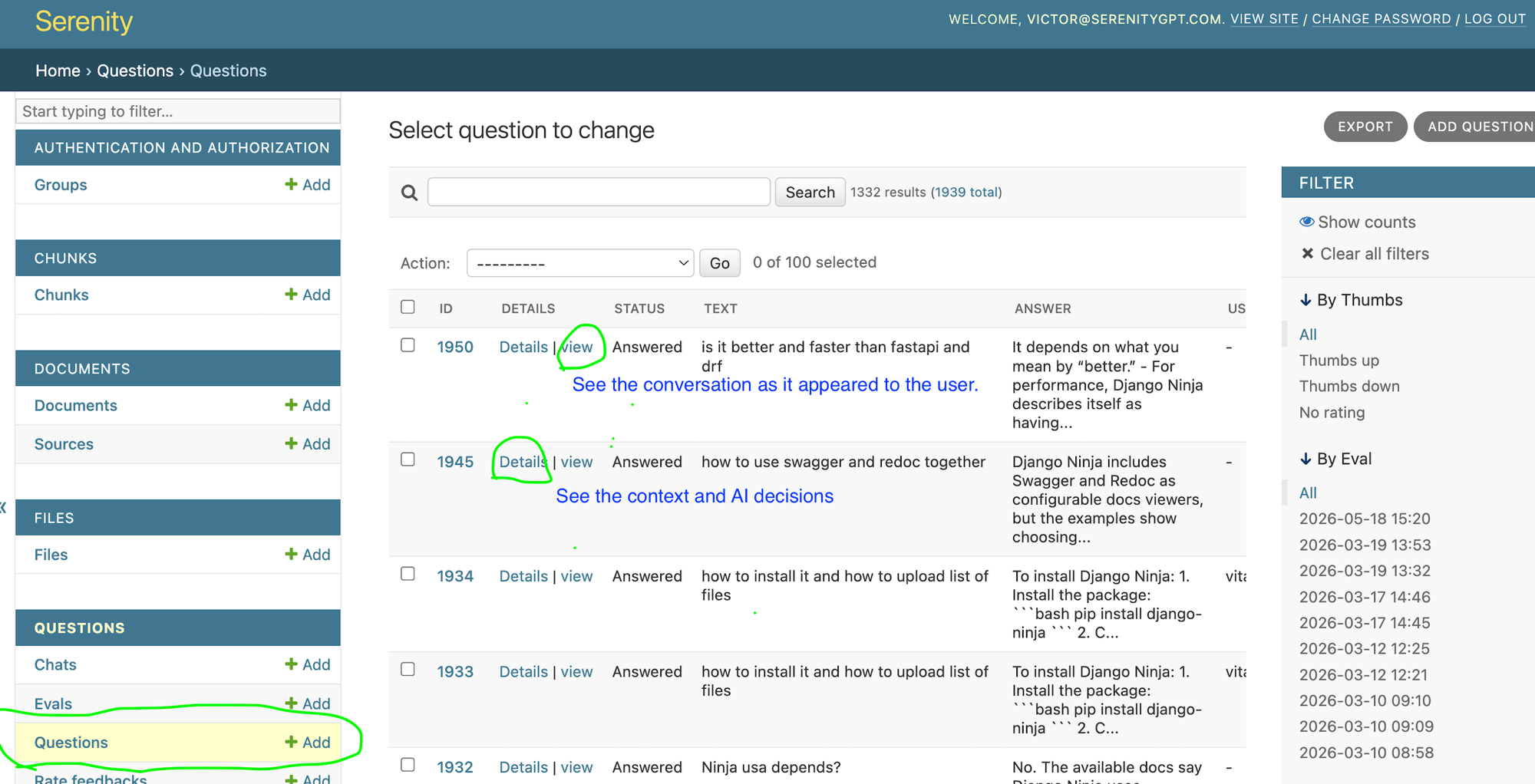
Clicking View brings up the conversation as it appeared to the user, showing the full back-and-forth exchange between the user and Serenity along with the thumbs up/down buttons under each answer.
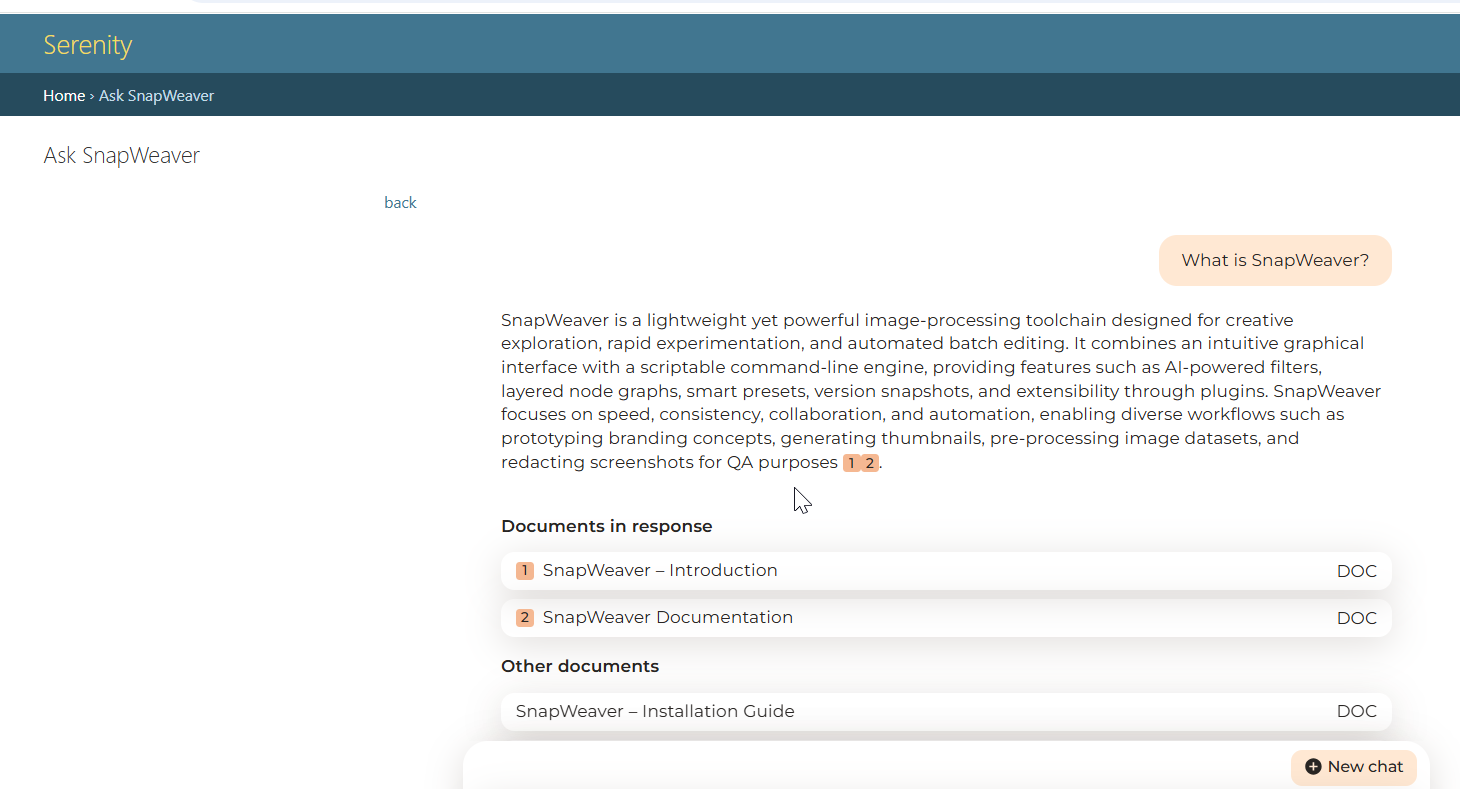
Managing document sources
The Sources page lists every configured document source along with the number of documents currently indexed from it:
To run an action on one or more sources, select the checkbox next to each source, choose an action from the Action menu, and select Go.
| Action | What it does |
|---|---|
| Remove all documents and fetch | Deletes every indexed document for the source, then fetches the content again from scratch. Use this after changing the source configuration or when the index contains documents that no longer exist at the source. A regular fetch does not delete them; it marks them as Stale, see Stale documents. |
| Fetch now | Fetches the source immediately without removing the existing content. New and changed documents are indexed; documents already in the index stay searchable during the fetch. Use this to pick up updates without waiting for the next scheduled fetch. |
| Delete documents matching exclude_urls | Shows, per source, how many indexed documents match the exclusion rules, lists the matching URLs (100 per page), and deletes them after confirmation. Use this after adding rules, because new rules do not remove documents that are already indexed. |
| Delete selected sources | Deletes the source configuration together with all of its indexed documents. The content is no longer searchable and the source no longer appears in the list. |
Warning
Remove all documents and fetch, Delete documents matching exclude_urls, and Delete selected sources cannot be undone. While a full re-fetch is in progress, documents from that source are not available in search until they are indexed again.
Excluding URLs from a source
To keep pages out of the index without a deployment, open a website source and fill in the Exclude urls field with one regular expression per line:
- The field applies to website sources only. Leave it empty for other source types.
- Each rule must match from the start of the URL.
- The rules are stored in the database;
config.yamlis not changed. Each fetch applies both theexclude_urlsfromconfig.yamland the rules from this field, starting with the next fetch. - Documents that are already indexed stay until you run Delete documents matching exclude_urls.
Managing documents
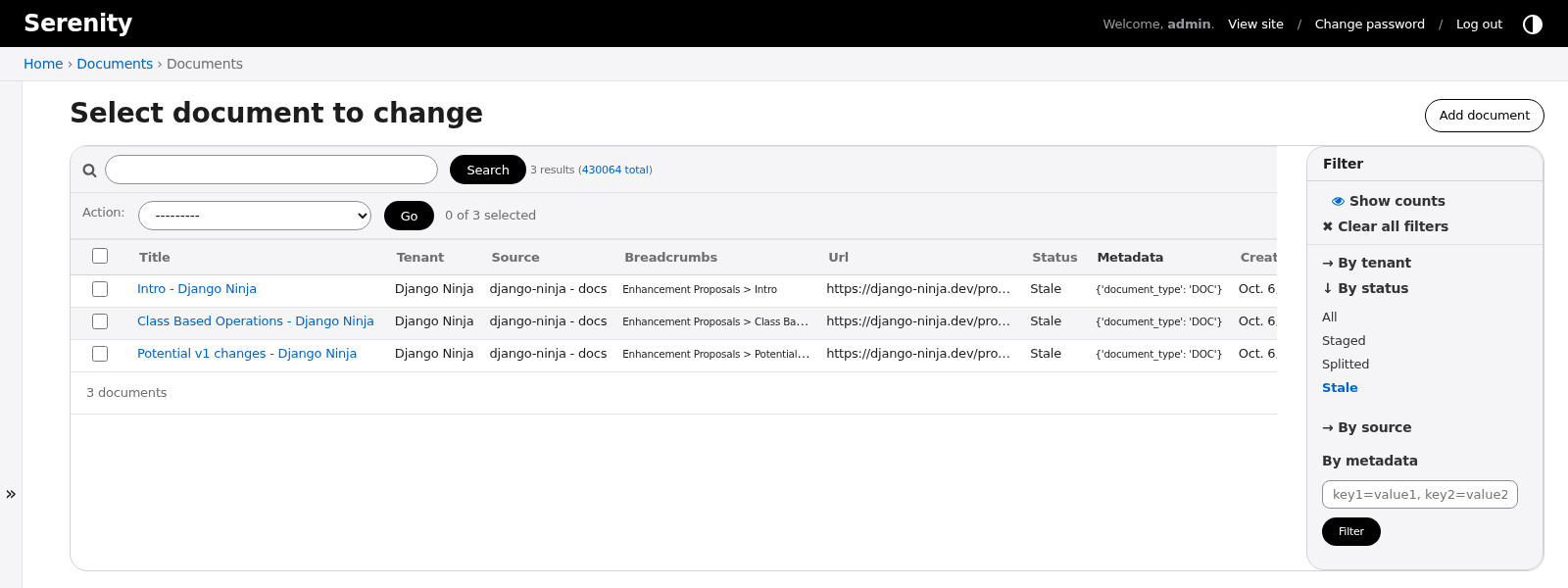
The Documents page lists every indexed document across all sources:
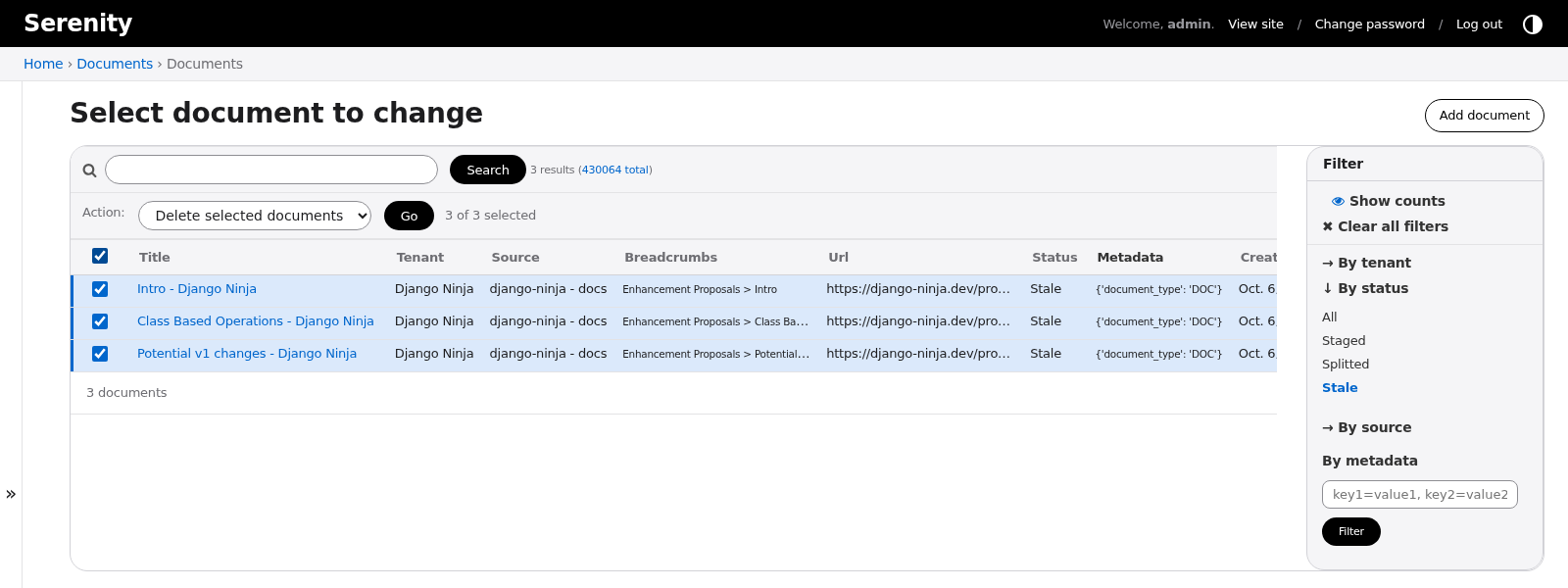
Each row shows the document title, tenant, source, breadcrumbs, URL, and status. Use the search box to find documents by title or URL, and the Filter panel on the right to narrow the list.
Removing stale documents
A document gets the Stale status when a fetch of its source no longer finds it, for example because the page was removed or moved. Stale documents stay searchable until you delete them. See Stale documents for how the status is set.
To review and remove them:
-
Open the Documents page and, in the Filter panel on the right, select Stale under By status. Narrow further By tenant or By source if needed.
-
Check each row. The URL column shows where the document came from; open it to confirm the page is really gone. A page that is only temporarily unavailable comes back on its own at the next fetch, so there is no need to delete it.
-
Select the checkbox next to each document to remove, choose Delete selected documents from the Action menu, and select Go.
-
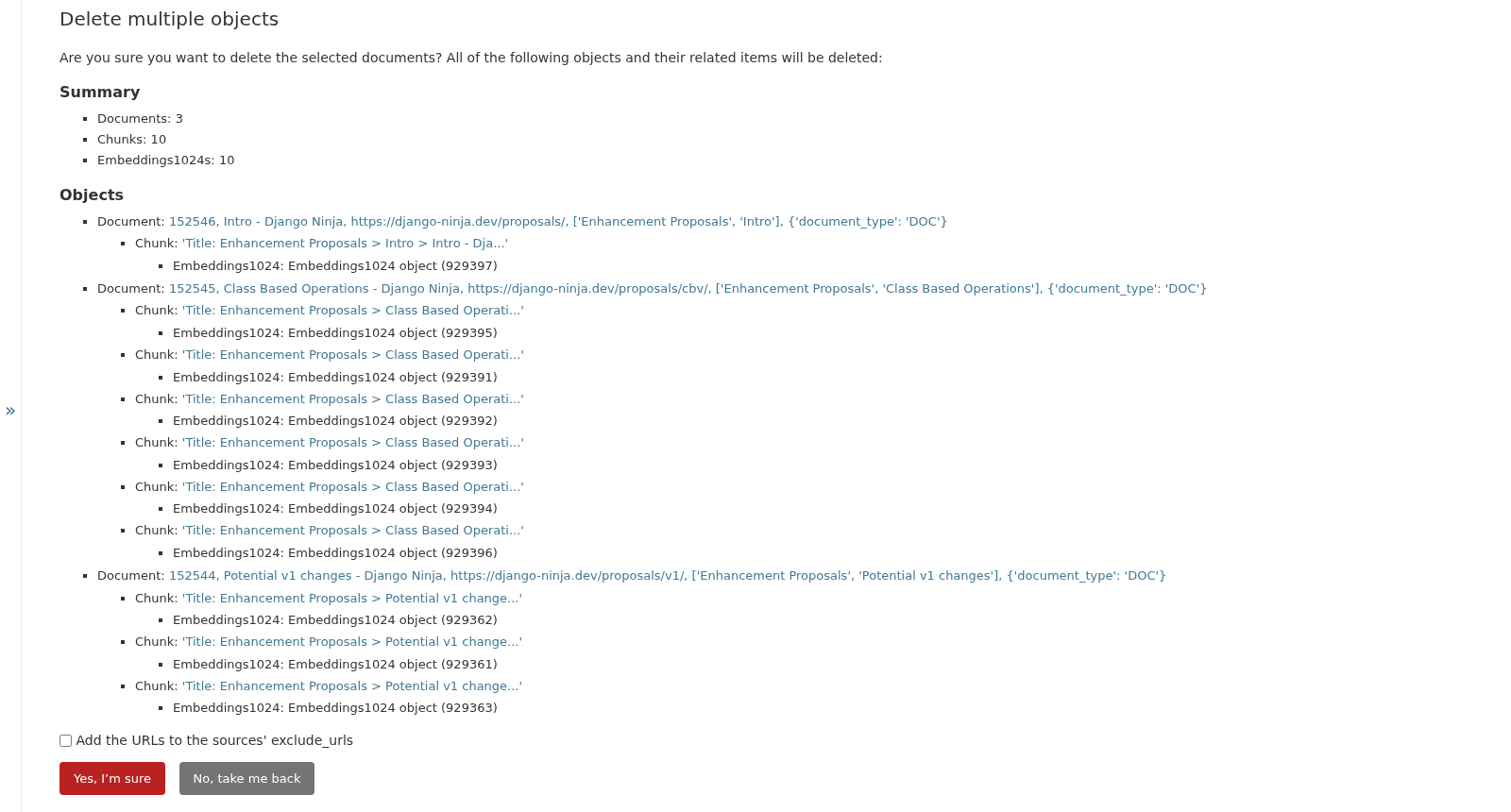
On the confirmation page, leave Add the URLs to the sources' exclude_urls unchecked and select Yes, I'm sure. Stale documents are already gone from the source, so the next fetch does not bring them back.
Deleting documents
To remove individual documents from the index without touching the rest of the source, select the checkbox next to each document, choose Delete selected documents from the Action menu, and select Go.
Deleting a document removes it and its chunks from the index, so it no longer appears in search results or answers. The source configuration is not affected. If the document still exists at its origin, the next fetch of that source indexes it again. To prevent this, select Add the URLs to the sources' exclude_urls on the confirmation page. This adds an exact-match rule for each deleted URL to the Exclude urls field of its source, where you can review or remove it later.
Technical Details
For advanced debugging and transparency, each conversation includes a Details view. This exposes:
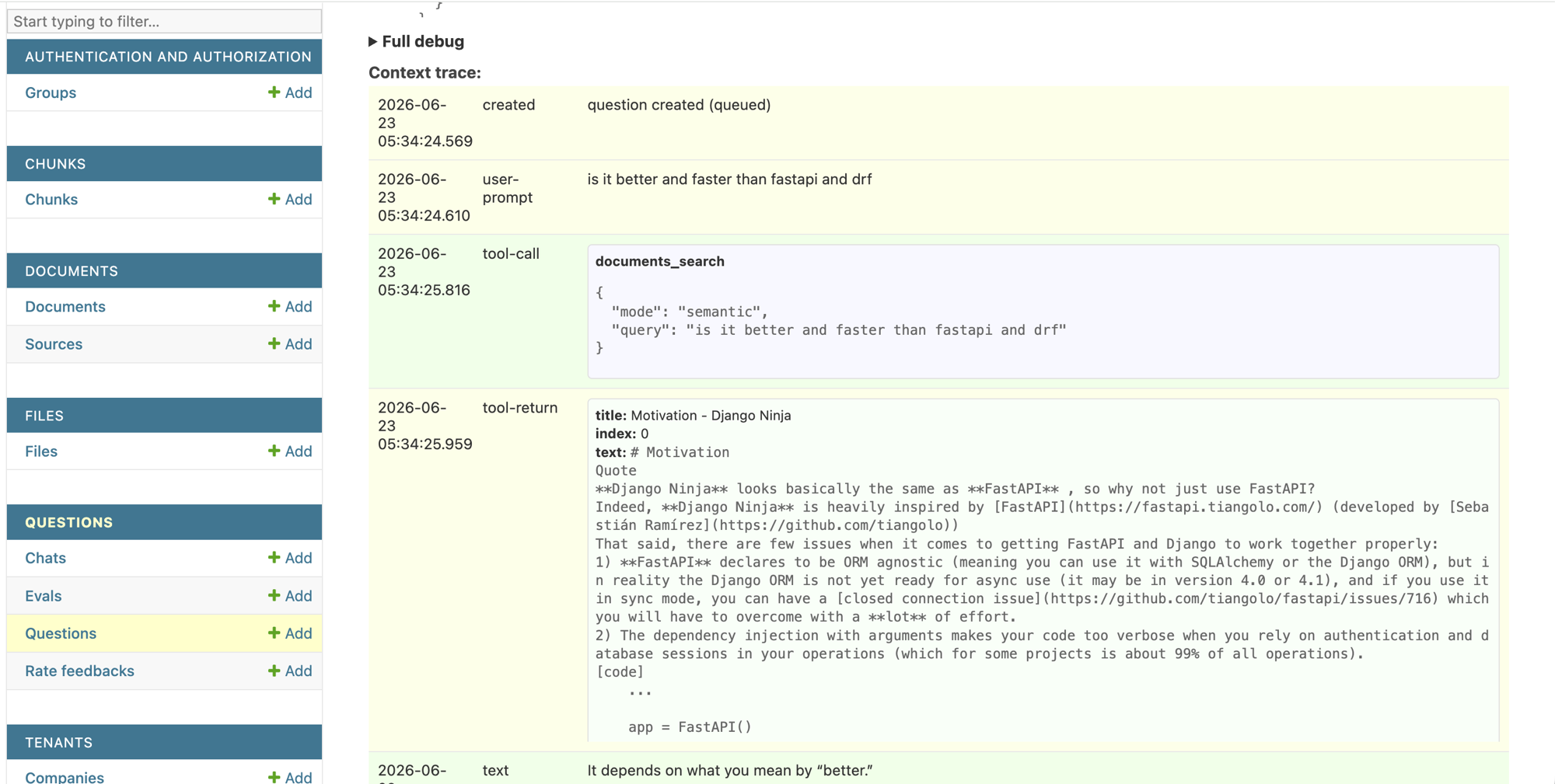
- LLM system, user prompts, and tool calls
- Semantic search results and chunks used in the response
Clicking Details brings up the full context trace for the conversation: every step the AI decided to take, the tool calls it made, and the context available to it at each point in time.
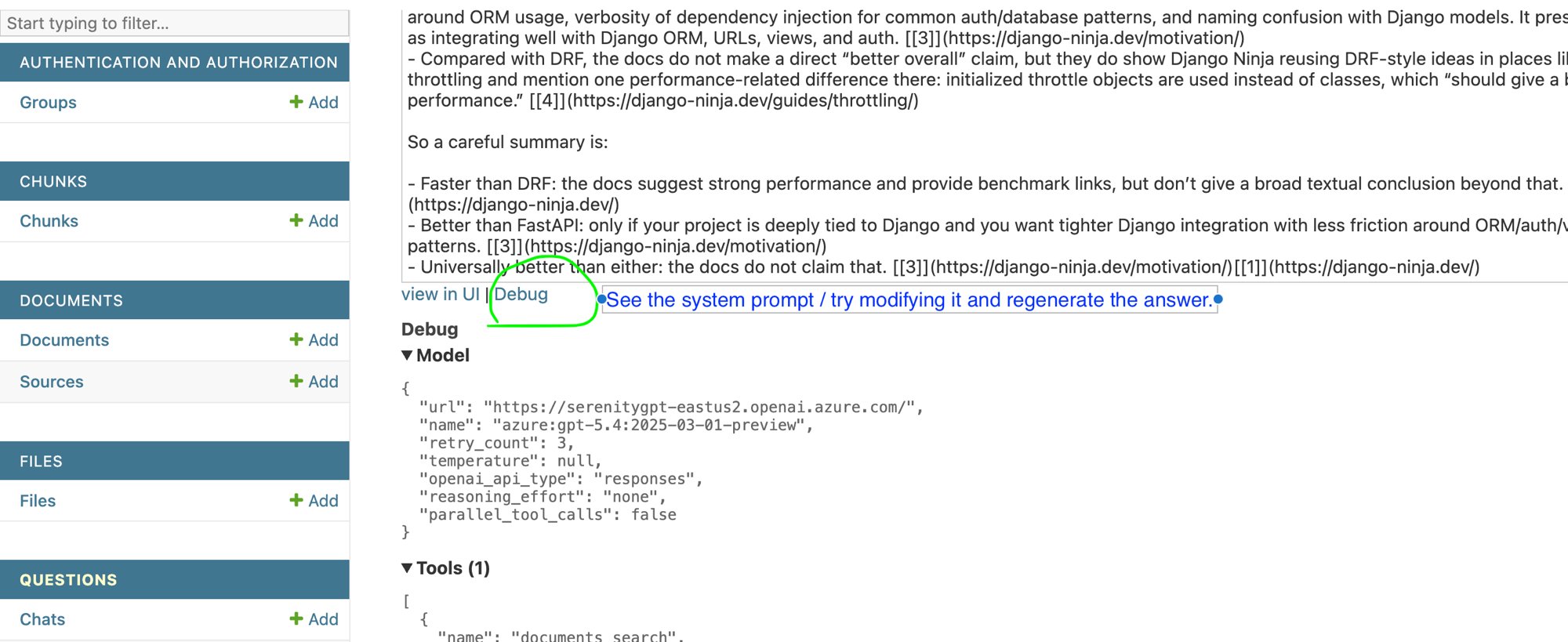
Clicking Debug under the answer opens the Question Debug page with the system prompt. You can modify these instructions and re-run the question to see whether a better response can be produced.
Note: For a complete record of all raw messages exchanged with the LLM, including token usage and latency, see Langfuse.
Feedback and Ratings
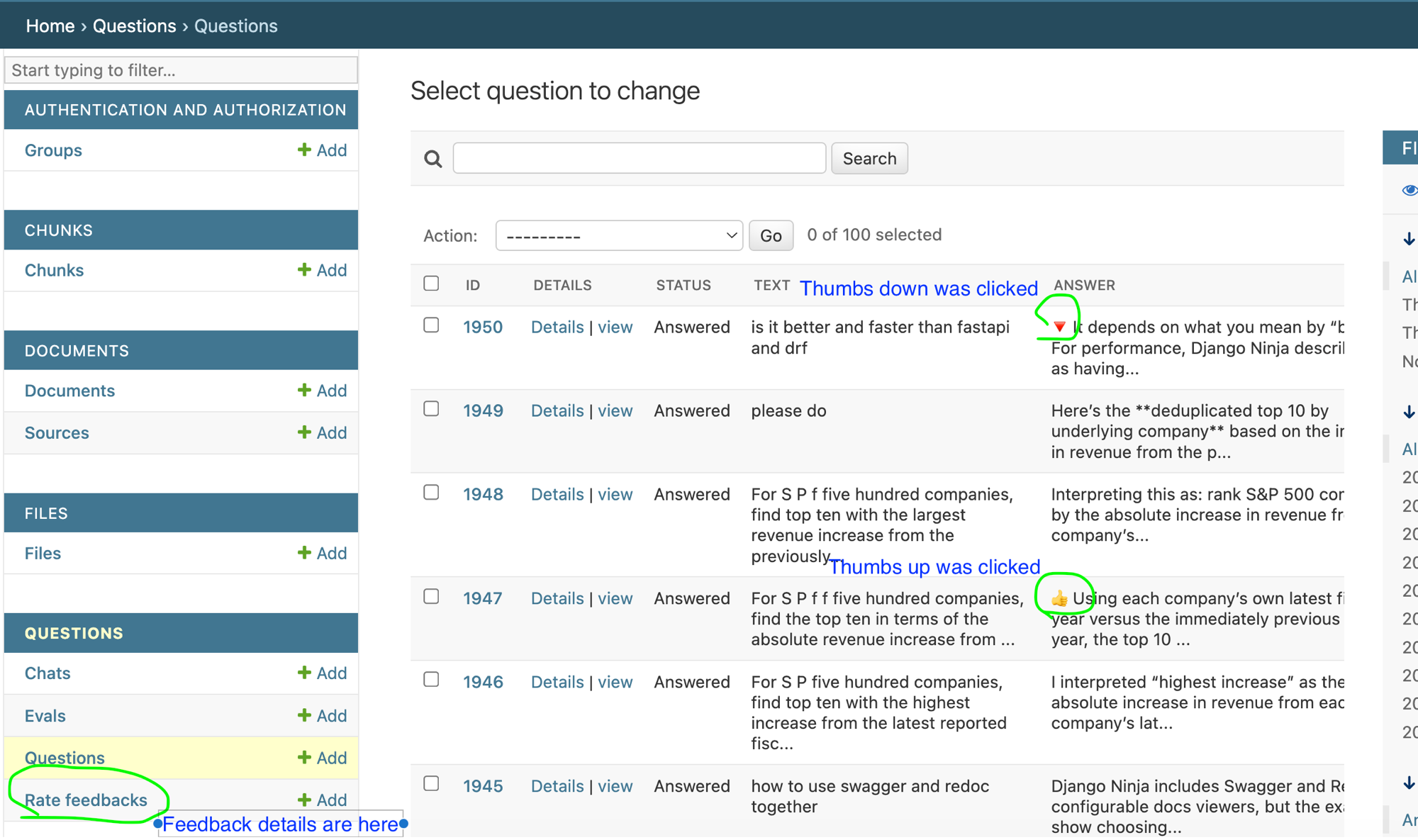
Feedback provided by users is clearly visible within the Admin View:
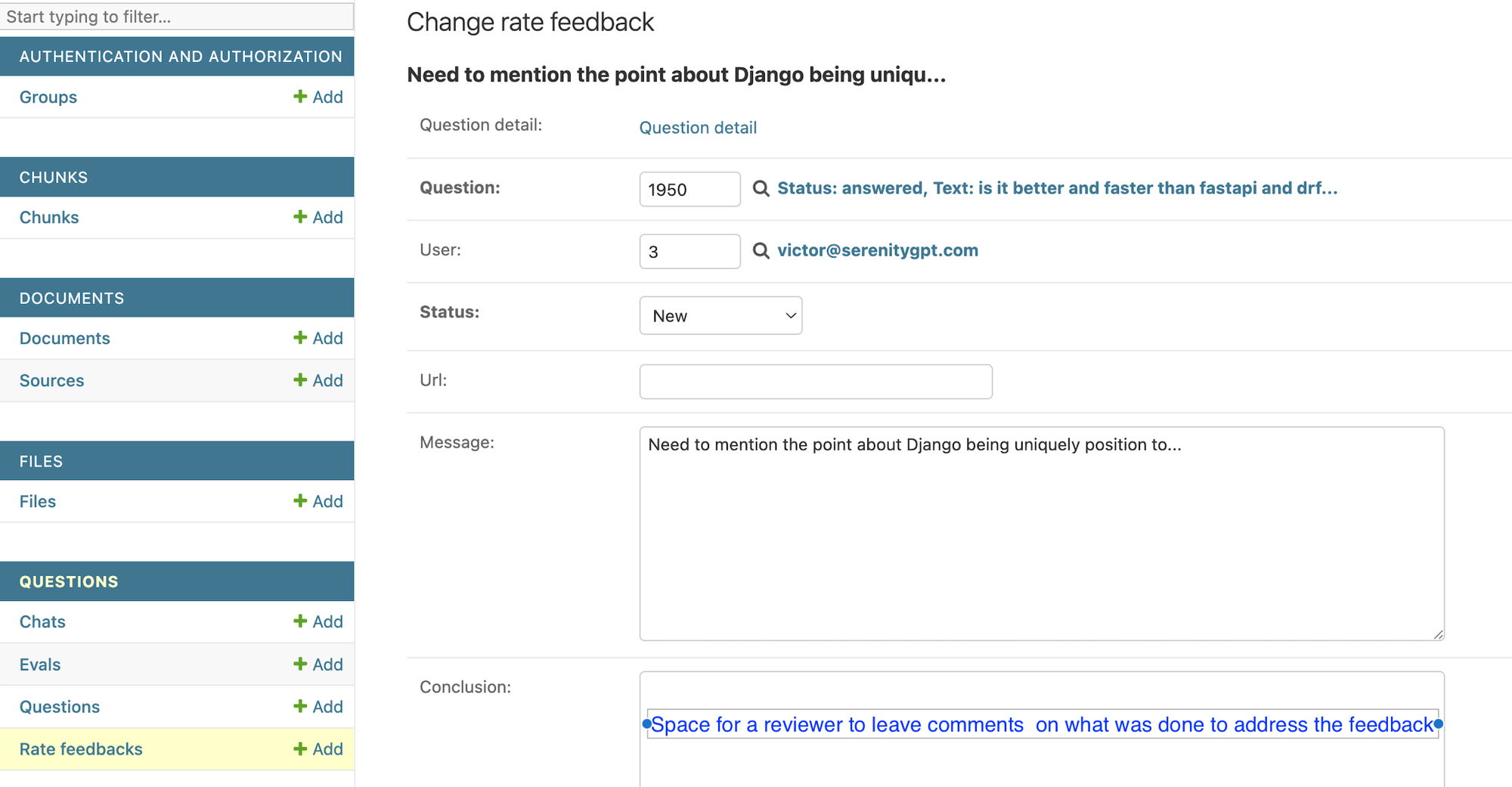
Thumbs up and thumbs down indicators appear next to each answer in the question list, and detailed feedback is available under Rate feedbacks.
Opening a feedback entry lets a reviewer record what was done to address it. The Conclusion field provides space to leave comments on the actions taken in response to the feedback.
This feedback helps prioritize areas for improvement and can be filtered or exported for further analysis.
Filters
The Admin View supports flexible filtering to quickly locate relevant conversations. Common filters include:
| Filter Type | Description |
|---|---|
| By Use | Filter conversations based on use case (e.g., support, internal QA) |
| Date Range | Limit results to a specific timeframe |
| Feedback | Show only conversations with positive/negative feedback |
| Custom Filters | Additional filters can be configured based on your deployment |
Analytics and Reporting
Custom analytics are available to identify trends and improvement areas. Typical analytics include:
Documentation Gap Analysis
Identifies questions that received incomplete or no answers, highlighting potential gaps in your knowledge base or documentation.
Commonly Asked Questions
Surfaces frequently asked question types to reveal areas that cause:
- High user confusion
- Recurring misunderstandings
- Repeated technical issues
These insights help guide documentation updates and product improvements.